• Login
    • Search
    • Categories
    • Recent
    • Tags
    • Users
    • Groups
    • Rules
    • Help

    Do more on the web, with a fast and secure browser!

    Download Opera browser with:

    • built-in ad blocker
    • battery saver
    • free VPN
    Download Opera

    Opera One updates with new webpage Translator and improved Split Screen

    Blogs
    desktop blog comments
    37
    53
    9793
    Loading More Posts
    • Oldest to Newest
    • Newest to Oldest
    • Most Votes
    Reply
    • Reply as topic
    Log in to reply
    This topic has been deleted. Only users with topic management privileges can see it.
    • L
      LuisAra last edited by This post is deleted!
      Reply Quote 0
        leocg 1 Reply Last reply
      • leocg
        leocg Moderator Volunteer @LuisAra last edited by

        @LuisAra English here please

        Reply Quote 0
          1 Reply Last reply
        • B
          bvfi-dev last edited by

          The split tab is really nice, but I wish the page inspector mode worked

          Reply Quote 0
            1 Reply Last reply
          • S
            Sanvean last edited by

            The password manager popup is useless and doesn't work properly. I'm playing a game in my browser, and there are constantly spaces where I need to enter values. The new password manager always tries to save the entered number as both the login and password. This is very annoying and interferes with the game and normal use of the Opera browser.

            Reply Quote 0
              1 Reply Last reply
            • mystico
              mystico last edited by

              Suggestion: When opening opera with the inbuilt animated wallpaper enabled, it always starts with a white screen. Can this be changed to a dark screen to not get flashbanged everytime?

              Reply Quote 0
                1 Reply Last reply
              • H
                haquer last edited by

                It would be nice if the Password Manager bubble also had a Password Generator.

                Reply Quote 0
                  1 Reply Last reply
                • L
                  lct1499 @evone56 last edited by

                  @evone56,

                  You are indeed correct that it is not possible to create any sub-folders within a Speed Dial folder.

                  To achieve what you need, I suggest that you turn on the Bookmarks bar (go to the top left corner of the browser window, click the Opera logo to display the Menu, then click Bookmarks, and then click Show bookmarks bar).

                  After turning on the Bookmarks bar, you should see an additional bar underneath the address bar.
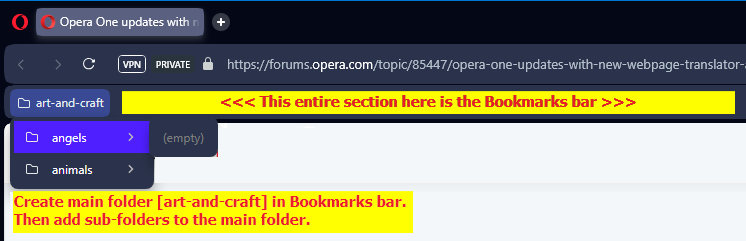
                  You can right-click on the Bookmarks bar and click Add folder... to add a folder and call it, for example, art-and-craft.
                  Then right-click on the art-and-craft folder and click Add folder... and create subfolders such as angels, animals etc.image_2025-08-08_184309393.png
                  After that, in the address bar, type opera://bookmarks/ and Enter, which will open the Bookmarks manager.

                  In the Bookmarks manager, select one of your existing Speed Dial folder on the left side, to view its existing items.
                  You can then drag-and-drop the existing items from the Speed Dial folder into the Bookmarks bar sub-folders.
                  Note: you can mouse-over an item and then select the item by clicking on the round checkmark that appears on the item's top-left corner. That way, you can select multiple items and move them into the Bookmarks bar sub-folders together at once.
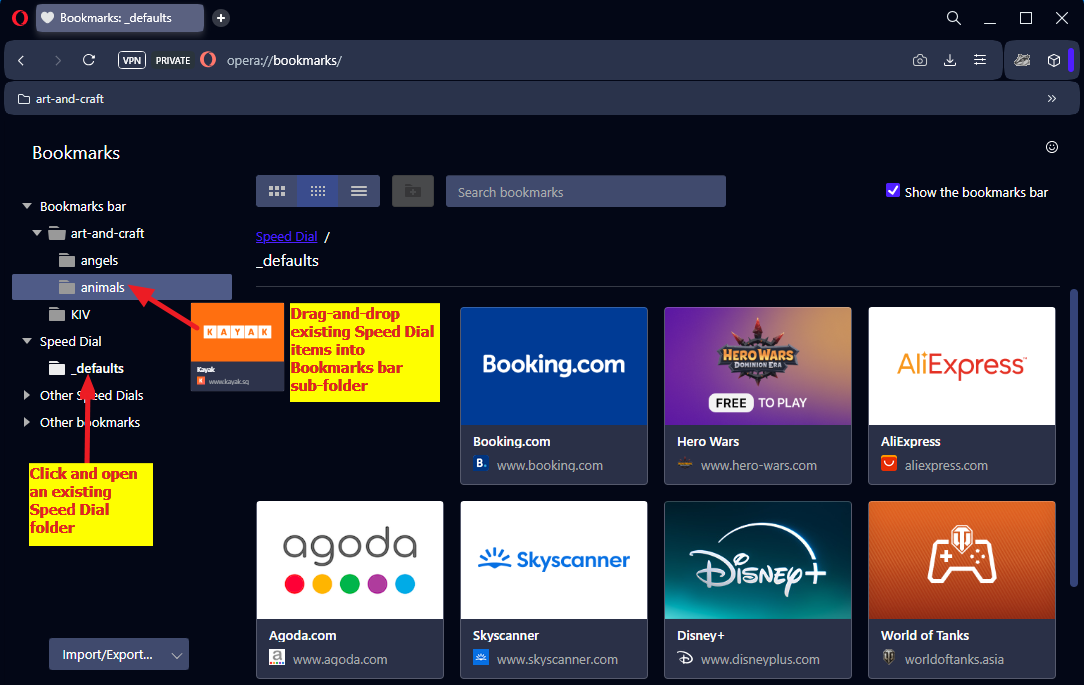
                  image_2025-08-08_190042023.png

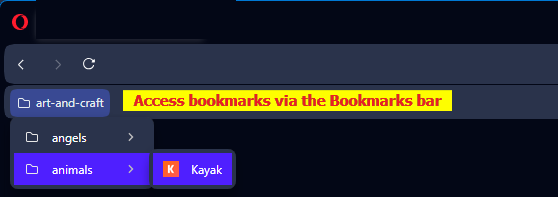
                  Once you have re-organised your items (in essence, Speed Dial items behave like normal bookmarks), you can access them in future via either the Bookmarks bar or the Bookmarks manager.
                  1cc49988-3362-46e7-8202-1d7ab59743eb-image.png
                  image_2025-08-08_192432586.png

                  Hope this helps you in organising all your stuff !!
                  😁

                  Reply Quote 0
                    1 Reply Last reply
                  • M
                    Memo-Walls last edited by

                    How can I enable the pop up password manager so it shows i the tool bar just like the image above?

                    Reply Quote 0
                      leocg 1 Reply Last reply
                    • leocg
                      leocg Moderator Volunteer @Memo-Walls last edited by

                      @Memo-Walls It's enabled by default. If the key icon will show up or not, depends on the page.

                      Reply Quote 0
                        1 Reply Last reply
                      • R
                        ronenfe last edited by

                        auto translate doesn't work and sync of passwords to android device doesn't work, i'm thinking of going back to chrome

                        Reply Quote 0
                          1 Reply Last reply
                        • First post
                          Last post

                        Computer browsers

                        • Opera for Windows
                        • Opera for Mac
                        • Opera for Linux
                        • Opera beta version
                        • Opera USB

                        Mobile browsers

                        • Opera for Android
                        • Opera Mini
                        • Opera Touch
                        • Opera for basic phones

                        • Add-ons
                        • Opera account
                        • Wallpapers
                        • Opera Ads

                        • Help & support
                        • Opera blogs
                        • Opera forums
                        • Dev.Opera

                        • Security
                        • Privacy
                        • Cookies Policy
                        • EULA
                        • Terms of Service

                        • About Opera
                        • Press info
                        • Jobs
                        • Investors
                        • Become a partner
                        • Contact us

                        Follow Opera

                        • Opera - Facebook
                        • Opera - Twitter
                        • Opera - YouTube
                        • Opera - LinkedIn
                        • Opera - Instagram

                        © Opera Software 1995-