• Login
    • Search
    • Categories
    • Recent
    • Tags
    • Users
    • Groups
    • Rules
    • Help

    Do more on the web, with a fast and secure browser!

    Download Opera browser with:

    • built-in ad blocker
    • battery saver
    • free VPN
    Download Opera

    Cannot move my saved HTML speed dial bookmarks to my Opera 1 start page

    Opera for Windows
    spe html speed dial speed dial page
    3
    7
    179
    Loading More Posts
    • Oldest to Newest
    • Newest to Oldest
    • Most Votes
    Reply
    • Reply as topic
    Log in to reply
    This topic has been deleted. Only users with topic management privileges can see it.
    • D
      DrLanders last edited by

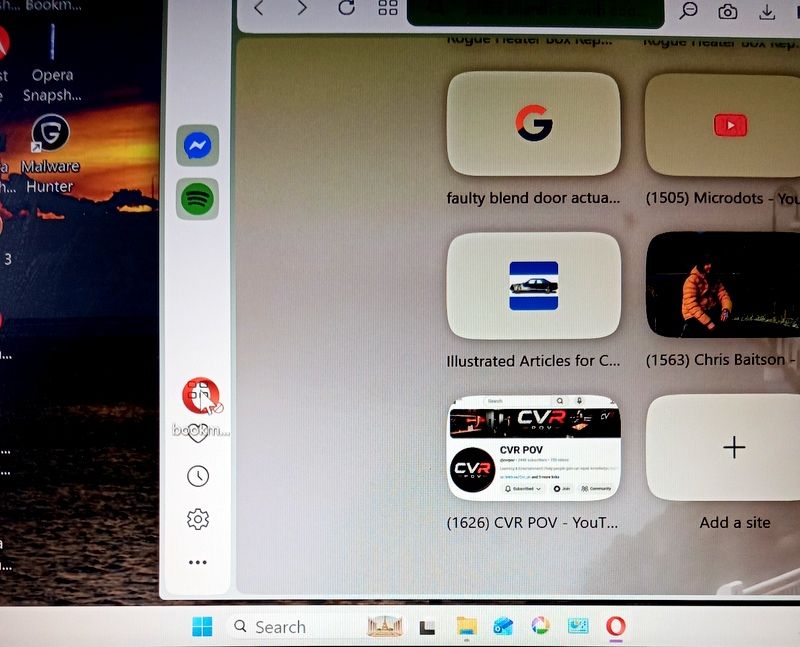
      Hello, I do not have a bug issue …sorry if this is the wrong platform. I cannot transfer my Speed Dial Start Page bookmarks + to my start page. I had them saved to HTML on my desktop. I had to factory reset my PC and they disappeared.

      I tried to copy and paste (drag & dropped) them to my sidebar speed dial , but no luck .

      Any help appreciated .Thank you.

      PS My browser is OPERA 1 (136.06008.22)
      Asus Vivobook windows 11

      Reply Quote 0
        leocg 1 Reply Last reply
      • leocg
        leocg Moderator Volunteer @DrLanders last edited by

        @DrLanders Did you import them into Opera already?

        Reply Quote 0
          D 1 Reply Last reply
        • D
          DrLanders @leocg last edited by

          @leocg
          Hi Leocg... No. I haven't been able to move them 😞
          Do you have any solution Thanks

          Reply Quote 0
            leocg 1 Reply Last reply
          • leocg
            leocg Moderator Volunteer @DrLanders last edited by

            @DrLanders What happens when you try to import the bookmarks?

            Reply Quote 0
              D 1 Reply Last reply
            • D
              DrLanders @leocg last edited by

              @leocg Hi leocg It errors a red circle with line through the red circle .
              I have a little vid , but need your email to share iIMG_20260920_173307_305 (1).jpg

              Reply Quote 0
                leocg 1 Reply Last reply
              • burnout426
                burnout426 Volunteer last edited by

                After you goto the URL opera://settings/importData, choose "Bookmarks HTML file" and point it to the HTML file with your bookmarks, you need to goto the URL opera://bookmarks in a tab.

                On the opera://bookmarks page, find your imported bookmarks. They might be in the root of the "Bookmarks Bar" folder or in an "Imported Bookmarks" folder in the "Bookmarks bar" folder. Wherever they're at, just like in Windows Explorer (File explorer), you can select (one, many or all), cut or copy, and paste from one folder to another to move or copy items. Shortcuts like ctrl + a, ctrl + x, ctrl + c and ctrl + v work too.

                As for the imported speed dials, they should be somewhere on the opera://bookmarks page (in an "other speed dials" folder or something) where you can select and move them to the main "Speed Dial" folder. Then they should show up on the start page.

                Reply Quote 0
                  1 Reply Last reply
                • leocg
                  leocg Moderator Volunteer @DrLanders last edited by

                  @DrLanders Host the video somewhere and post the link here, that way others can also help.

                  Reply Quote 0
                    1 Reply Last reply
                  • First post
                    Last post

                  Computer browsers

                  • Opera for Windows
                  • Opera for Mac
                  • Opera for Linux
                  • Opera beta version
                  • Opera USB

                  Mobile browsers

                  • Opera for Android
                  • Opera Mini
                  • Opera Touch
                  • Opera for basic phones

                  • Add-ons
                  • Opera account
                  • Wallpapers
                  • Opera Ads

                  • Help & support
                  • Opera blogs
                  • Opera forums
                  • Dev.Opera

                  • Security
                  • Privacy
                  • Cookies Policy
                  • EULA
                  • Terms of Service

                  • About Opera
                  • Press info
                  • Jobs
                  • Investors
                  • Become a partner
                  • Contact us

                  Follow Opera

                  • Opera - Facebook
                  • Opera - Twitter
                  • Opera - YouTube
                  • Opera - LinkedIn
                  • Opera - Instagram

                  © Opera Software 1995-