Session recovery after abnormal termination
-
robeyw last edited by
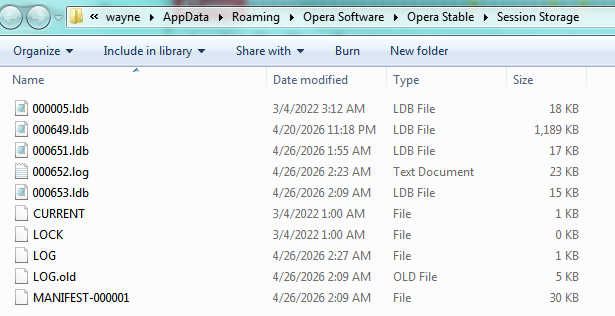
I had a window that was misbehaving and tried to exit Opera to restart but the normal exit failed. There should have been a box asking if I wanted to exit and stating that my tabs would be restored on restart but the box did not appear and Opera did not promptly close. After about a hour the window closed but when I restart, the old tabs are not there. Is there a way to recover something. One thing I see is a few ldb files in Opera Stable\Session Storage that seem to be leftover when something goes wrong. In this case 000649.ldb may be useful. Is there a way to use this or some other file to restore some old tabs?
Because this cannot be repeated and because Opera automatically updates it's version when restarting, the only "mandatory" inf available is that I am running Windows 7 sp1

-
-
-
-
burnout426 Volunteer last edited by
The path to the profile folder is shown at the URL
opera://about. For regular Opera 95, that should be "C:\Users\yourusername\AppData\Roaming\Opera Software\Opera Stable". In modern versions of Opera, it's the "Default" folder in the "Opera Stable" folder.The "Sessions" folder contains the files where your open tabs and recently-closed tabs are stored, including what workspace and window each tab is in. The files in there are timestamped. There should be one or more "Session_timestamp" and "Tabs_timestamp" files. When Opera starts up, it creates a new set of the files and when Opera properly closes, it saves the new set and deletes the oldest set if there are then more than 2 sets. So, if every is perfect and you've run and closed Opera more than one, you should have 2 sets while Opera is closed and 3 sets while Opera is running.
With that knowledge, if you start Opera and find that your open tabs are gone, that means that the files with the latest timestamps that Opera used to load itself are corrupted. When this happens, you might be able to restore things if you keep Opera open, copy the "Sessions" folder to your desktop, close Opera, delete everything in the "Sessions" folder in your profile folder and then copy the "Session_timestamp" and "Tabs_timestamp" files with the oldest timestamps to the now-empty "Sessions" folder in the profile folder. If you already closed Opera though after noticing your tabs are gone, you're usually out of luck as the last good files would have been deleted as they would have then been the 3rd set.
So, one thing you can do for the future is to frequently back up the "Sessions" folder (while Opera is closed). That way, if something happens, you can delete everything in the "Sessions" folder and copy over a good set from a backup to restore things to how they were at the time of the backup (assuming you haven't changed what workspaces and windows you've had etc.).
Another way to back up your open tabs is to right-click on a tab in each workspace in each window, goto "save" and choose "all tabs to a speed dial folder". Then, you can rename the speed dial folders to be like "window 1 - workspace name1", "window 1 - workspace name2", "window 2 - workspace - name1" etc. Then, if ever needed, in the corresponding windows and workspace, you can right-click on its folder and choose "open all in tabs". You can also use the heart icon while on a page to bookmark that page to an existing speed dial folder to add it to a saved tabs folder. Also, because those folders are bookmarks, they get backed up when you goto the URL
opera://bookmarksand use the drop-down at the bottom left to export your bookmarks to an HTML file (that you can later import at the URL ```opera://settings/importData`` by selecting "Bookmarks HTML file" in the drop-down if you ever had to).As for the session files, they are SNSS files and are not human-readable. But, at https://web.archive.org/web/20221027220343/http://lsauer.net/chrome-session-restore/#, there's a web page that can read them. You click "choose files" at the bottom and point it to 1 of the session files and click the "recently closed" drop-down. You'll then see a list of tabs where you can click on each link. Or, you just use the option at the top of that list to open all the links. The "open all" function though is limited by the max # of tabs setting at the bottom of the page. So, you'll want to change that to 50 first before picking a file. Or, you can right-click the max field, choose "inspect", right-click on
max="50"in the Elements tab, choose "Edit attribute", use the DEL key to remove all of the attribute and then press ctrl + enter to apply. Then, you can set it to 1000 for example if you think you had that many open tabs. Then, you can pick a session file to read. Note though, that before you use the "open all" function, while on that utility page, click the badge (usually a lock) at the left of the address field, goto "Site settings" and allow pop-ups for the site. Otherwise, those tabs will be blocked when you try to open them.The "Session_timestamp" file contains a list of open tabs. The "Tabs_timestamp" file contains a list of recently-closed tabs (like tab history kind of). If you're lucky, one of the older files you have will contain your the tabs you want. If not, you're out of luck.
The "Session storage" folder is not what you want. That's just temp data for tabs that are currently open while Opera is running. The data there for each tab is cleared when Opera shuts down.
-
-
robeyw last edited by
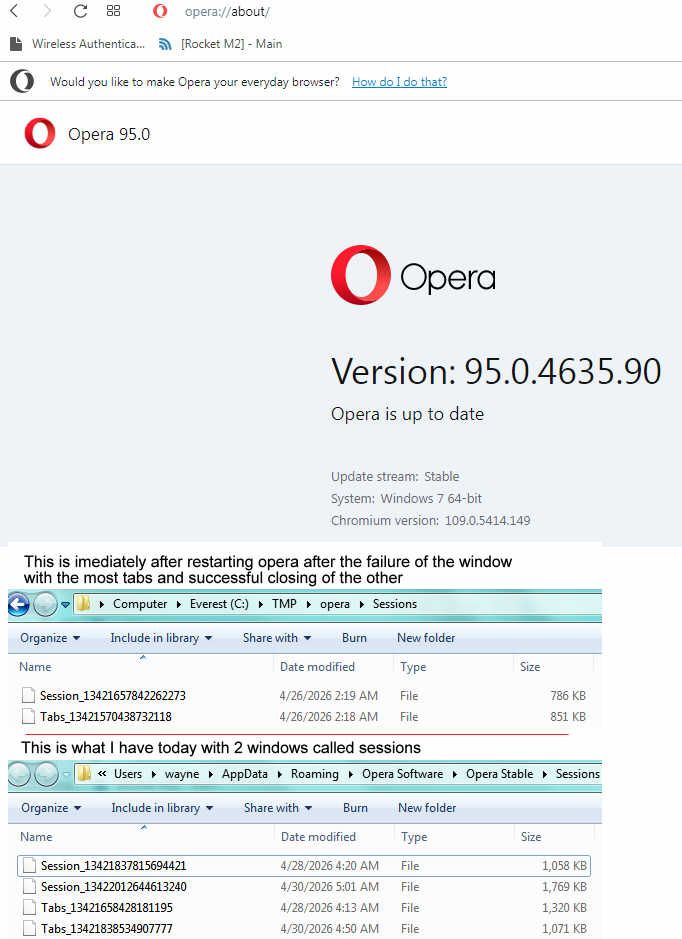
@burnout426 I will save this info for future reference but my opera is nothing like this. Opera Stable has about 45 folders and with sub folders, it has 360 but none are default or profile. Sessions only has the current session, nothing historical. See images below:
-
burnout426 Volunteer last edited by
@robeyw if your open tabs are not in those Session_timestamp and Tabs_timestamp files,, and you don’t have a backup, your open tabs are gone forever.
In 95, the “Opera Stable” folder is your profile folder. It’s called the profile folder, but it’s not literally named “profile”. The “Sessions” folder in the “Opera Stable” folder is the correct place to look and your pic shows you have the right place.
