Can't stop Opera from starting on PC startup or login
-
Jerry12302 last edited by
I have the latest version of Opera One, Stable, on Windows 11. Lately it has been starting on its own when I start or unlock my PC, and it loads Bing.com.
I never set anything to have it load Bing.
I just went into settings and had it update to the latest version, which it did fine. It didn't help.
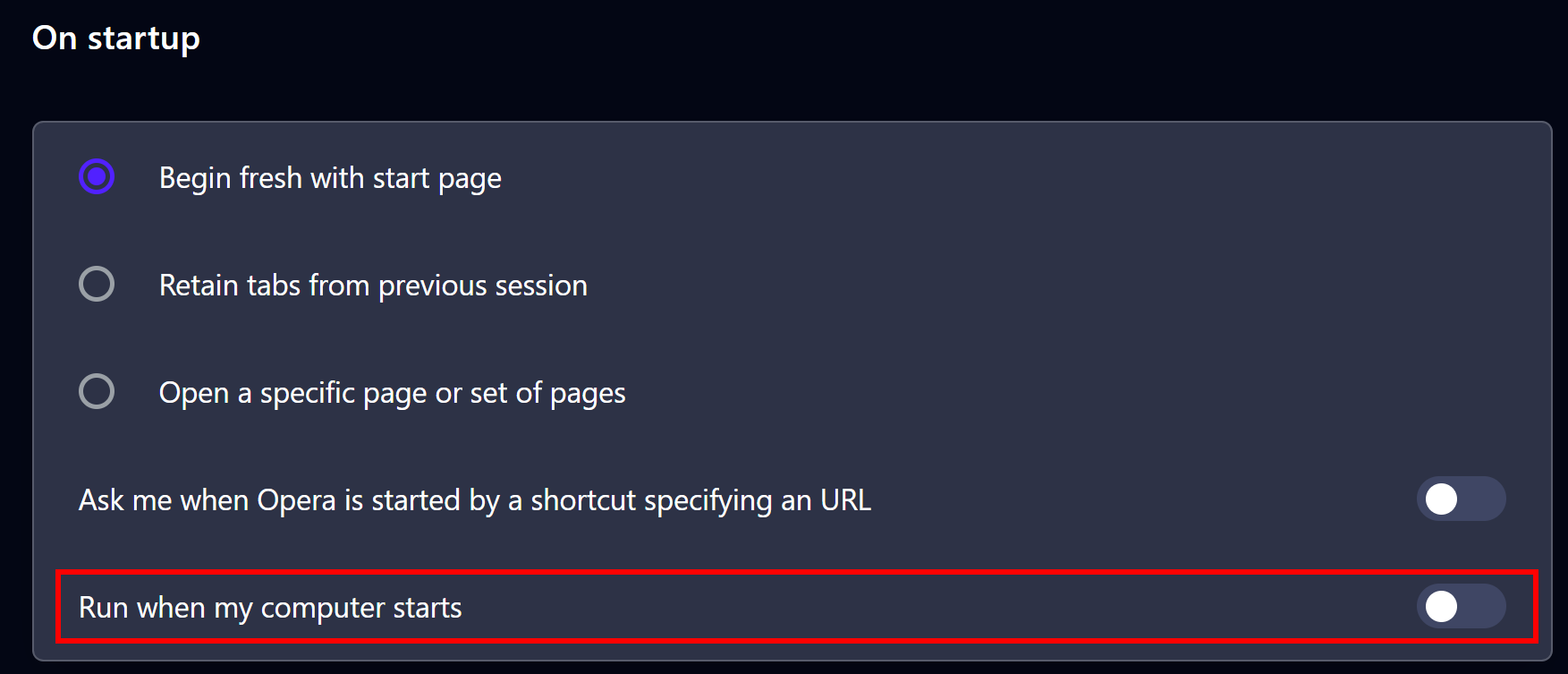
I went to Opera Settings, On Startup; the "Run when my computer starts" option is disabled.
The option "Open a specific page or set of pages" is selected, and it is set to my company's website.
I also went to the Windows 11 Task Manager, Startup apps; Opera does not appear in the list at all.
I don't want Opera to open automatically, and I especially don't want it to load Bing.com.
When I close Opera and open it again myself it does not load Bing, it loads my company website, which is how it should be.
It only opens Bing when it starts automatically when I login or unlock my PC.
The only suggestions I can find online are the ones I already tried noted above, so please do not respond with those suggestions, I've tried them repeatedly.
-
burnout426 Volunteer last edited by
I would scan your system with the free version of Malwarebytes and AdwCleaner. Sounds like you have some malware that's loading bing on Windows startup in either Opera specifically or the default browser in general.
You can open up regedit and look in "HKEY_CURRENT_USER\Software\Microsoft\Windows\CurrentVersion\Run", "HKEY_LOCAL_MACHINE\SOFTWARE\Microsoft\Windows\CurrentVersion\Run" and "HKEY_LOCAL_MACHINE\SOFTWARE\WOW6432Node\Microsoft\Windows\CurrentVersion\Run" to see if you can find any shady startup entries. You can also look in "C:\Users\yourusername\AppData\Roaming\Microsoft\Windows\Start Menu\Programs\Startup" and "C:\ProgramData\Microsoft\Windows\Start Menu\Programs\Startup" in File Explorer for shady startup entries there.
You can also open up the Windows Task Scheduler, select "Task Scheduler Library' and look for a shady task in the list. You can start at the top of the list, switch the task to the "Action" tab and use the down arrow to go through each task to see if you see a task with an action that's like "path to opera.exe" "https://www.bing.com/" or just something with "bing.com" in it.
In Opera itself, make sure you don't have any shady extensions at the URL
opera://extensions.On the startup tab in the Windows task manager, if you see "browser_assistant.exe", that's Opera's browser assistant that will sometimes show an Opera icon in the systray. It should be unrelated to your issue, but right-click it and choose "disable" if it's there.
-
Jerry12302 last edited by
I tried a Malwarebytes scan, it didn't find anything. I use Webroot, so I'm not surprised.
I opened regedit and looked where you mentioned. Nothing in HKEY_CURRENT_USER\Software\Microsoft\Windows\CurrentVersion\Run.
In HKEY_LOCAL_MACHINE\SOFTWARE\Microsoft\Windows\CurrentVersion\Run I saw entries for Adblock and Musehub. I didn't change anything in the Registry, but I went into their folders and disabled them with exe file name changes.
In HKEY_LOCAL_MACHINE\SOFTWARE\WOW6432Node\Microsoft\Windows\CurrentVersion\Run there are legitimate entries, but there is also a subfolder named OptionalComponents. In there are three subfolders, IMAIL, MAPI, and MSFS. They each have an entry for Installed, and MAPI also has an entry for NoChange. There are no paths and filenames indicated in either of them.
The C:\Users\yourusername\AppData\Roaming\Microsoft\Windows\Start Menu\Programs\Startup folder is empty.
The C:\ProgramData\Microsoft\Windows\Start Menu\Programs\Startup folder just contains a shortcut to my printer monitor.
I looked in the Windows Task Scheduler Library, there were a few tasks but none indicated Bing. I disabled a couple of Opera tasks, and the other two that didn't need to run.
In Opera itself, at the URL opera://extensions, there was an Opera adblocker. I disabled that.
On the startup tab in the Windows task manager I did not see "browser_assistant.exe". Anything in there that is enabled appear to be legitimate.
I usually only lock my PC, I seldom shut it down, so this is happening when I unlock the PC. I tried shutting down entirely, then turning it back on. Opera did not start automatically at all, and when I opened it my business web page was all that opened, as it should. Then I locked the PC, and when I logged back in I had the problem again, Opera starts and opens the Bing page.
Any other thoughts?
@burnout426 said in Can't stop Opera from starting on PC startup or login:
I would scan your system with the free version of Malwarebytes and AdwCleaner. Sounds like you have some malware that's loading bing on Windows startup in either Opera specifically or the default browser in general.
You can open up regedit and look in "HKEY_CURRENT_USER\Software\Microsoft\Windows\CurrentVersion\Run", "HKEY_LOCAL_MACHINE\SOFTWARE\Microsoft\Windows\CurrentVersion\Run" and "HKEY_LOCAL_MACHINE\SOFTWARE\WOW6432Node\Microsoft\Windows\CurrentVersion\Run" to see if you can find any shady startup entries. You can also look in "C:\Users\yourusername\AppData\Roaming\Microsoft\Windows\Start Menu\Programs\Startup" and "C:\ProgramData\Microsoft\Windows\Start Menu\Programs\Startup" in File Explorer for shady startup entries there.
You can also open up the Windows Task Scheduler, select "Task Scheduler Library' and look for a shady task in the list. You can start at the top of the list, switch the task to the "Action" tab and use the down arrow to go through each task to see if you see a task with an action that's like "path to opera.exe" "https://www.bing.com/" or just something with "bing.com" in it.
In Opera itself, make sure you don't have any shady extensions at the URL opera://extensions.
On the startup tab in the Windows task manager, if you see "browser_assistant.exe", that's Opera's browser assistant that will sometimes show an Opera icon in the systray. It should be unrelated to your issue, but right-click it and choose "disable" if it's there.italicised text
-
burnout426 Volunteer last edited by
If Opera is set as your default browser, temporarily set a different browser as the default and see if that browser opens when unlocking your computer instead.
For Opera, you can delete the "Sessions" folder in "C:\Users\yourusername\AppData\Roaming\Opera Software\Opera Stable\Default". It'll wipe out all your open tabs, but it my fix the issue.
-
burnout426 Volunteer last edited by
@Jerry12302 said in Can't stop Opera from starting on PC startup or login:
I usually only lock my PC
While Opera is still running?
-
Jerry12302 last edited by
@burnout426 I will try that. I thought originally that I had "Opera Stable", but in Help, About Opera it indicates "Opera One" "Update stream:Stable".
Is there a difference?
-
Jerry12302 last edited by
@burnout426 I tried setting Chrome as the default browser instead, but after locking and unlocking Chrome opens, and opens the Bing tab.
I also deleted the "Sessions" folder you mentioned, that did not change anything.
-
Jerry12302 last edited by
@burnout426 I tried setting a different browser, it didn't help. I also deleted the Sessions folder, that did not help either.
Sometimes Opera is still open when I lock the PC, sometimes not. When it's open when I lock and then when I unlock nothing happens, it's still open the way I left it.
-
burnout426 Volunteer last edited by
@Jerry12302 said in Can't stop Opera from starting on PC startup or login:
@burnout426 I tried setting Chrome as the default browser instead, but after locking and unlocking Chrome opens, and opens the Bing tab.
That means it’s not Opera and is something on your system causing it.
-
Jerry12302 last edited by
@fitzydj It is toggled to Off.
I believe burnout426 is correct, since changing the default browser from Opera to Chrome did not prevent Chrome from running and opening the Bing.com page either, it doesn't appear to be an issue specific to Opera.
I searched all the scripts I could find on my hard drive for "bing.com", using Powershell, it didn't find any.
Not sure what else to do.
-
burnout426 Volunteer last edited by burnout426
@Jerry12302 You can hit Windows key + r to open the run dialog, type
services.mscand press enter to see the services list. You can go through the list to see if you see anything weird.On the processes tab in the Windows task manager you can look through the list of running processes to see if you find any weird processes running.
In regedit, you can search
bing.com(in "keys", "values" and "data" in the ctrl + f dialog) and what it shows (clicking find next each time till you see all matches). There might be some legit entries there, but maybe one will look odd, especially if it's in "HKEY_LOCAL_MACHINE\SOFTWARE\Microsoft\Windows NT\CurrentVersion\Schedule\TaskCache\Tasks".In both Chrome and Opera, just for good measure, goto the URL
chrome://settings/content/notificationsand make sure there are no allowed notifications for sites. -
Jerry12302 last edited by
@burnout426 I ran services.msc, there are a hundred or so running, all greek to me. Nothing that indicates Bing that I can see.
I didn't see any running processes that indicated Bing either, there are a lot though. No way to know if one of them has anything to do with loading Binb.com.
I searched all of regedit, some instances of Bing, under HKEY_CLASSES_ROOT ... \Internet Explorer\DOMStorage there was:
bing.com
www.bing.comAlso under HKEY_CURRENT_USER ... \Internet Explorer\DOMStorage there was:
bing.com
www.bing.comI removed those.
There was also a cookie, ab anon, that contained a reference to Bing.com that I deleted.
There was something that contained a lot of gibberish along with very lengthy text telling a story about some random thing, seemed like it was from some page I may have landed on when Bing loaded. The text contained several mentions of Bing.com. I deleted that file.
In both Chrome and Opera I went to //settings/content/notifications and turned off allowed notifications for any sites.
Nothing worked though, I locked the PC and unlocked it, it loaded the browser and Bing.com.
-
burnout426 Volunteer last edited by
Right-click on Opera and Chrome's desktop shortcut and goto "Properties". Then, on the Shortcut tab, check the target field command to see if anything is being like a bing URL is being passed to opera.exe/chrome.exe. If so, edit the target field so that only the quoted path to opera.exe is in there.
Then, repeat for Opera and Chrome's taskbar button. Right-click on the taskbar button, right-click on "Opera Browser" and then goto properties.
-
Jerry12302 last edited by
@burnout426 Nothing in there, no references to Bing. But there is a new development. I always noticed something appearing and disappearing in the right of the taskbar when I unlocked or logged in, it was black. Today I looked for it and noticed C:\ in it, in white, before it disappeared, then the browser opened and Bing.com loaded as it has been.
It looked like the command prompt, like it was running a batch file or something. I googled how to disable the command prompt in Windows 11 (my version is the Pro edition) and followed the instructions, including how to also prevent batch files from running. (in the Group Policy Editor, gpedit.msc)
"Press Win + R, type gpedit.msc, and hit Enter.
Navigate to: User Configuration > Administrative Templates > System.
On the right pane, double-click Prevent access to the command prompt.
Select Enabled.Under "Disable the command prompt script processing also?", select Yes if you also want to block batch files (.bat/.cmd), otherwise leave as "No".
Click Apply and OK."I did that, locked the PC, unlocked, and the browser didn't open, no Bing, nothing. I did see the command prompt window in the task bar, but it was black, and it didn't disappear. I double clicked it and it opened in the upper left side of the screen as a shrunken window. I clicked that and dragged the arrows to make it bigger and the text in the title bar was:
C:\WINDOWS\system32\conhost.exe
I closed that window, locked the PC, unlocked it and logged back in, and the browser still didn't open, no Bing, so that technique did the trick.That command prompt still appears, I just close it.
A Google search said that conhost.exe is legitimate, but the file must reside in C:\Windows\System32, which it does, so that's strange.
I haven't noticed anything different about Windows since doing this, everything seems fine.
-
burnout426 Volunteer last edited by
@Jerry12302 Nice.
Not sure if it'll help, but you can try using Process Explorer to see if you can find any more info on that open conhost process. For example, in Process explorer, you can right-click it and choose "properties" and look through all the property tabs. You can also right-click a column header in Process Explorer, choose "Select columns" and choose to enable the "Autostart" to see if the process was starting from a key in the registry that you missed.
It's possible that something just did a:
start "" "https://www.bing.com/"command though, which might not show much info even in Process Explorer.
Hopefully you can eventually figure out the cause so you can put things back to normal with the command prompt config.
-
Jerry12302 last edited by
@burnout426 The Process Explorer shows 7 running conhost.exe processes. The tabs in these don't reveal anything about opening the browser and loading Bing.com. The columns for Description, Company Name, and Autostart Location are all blank for those processes.
This morning when I unlocked the PC the command prompt icon appeared and stayed in the taskbar, but it didn't do anything. I opened Opera and Bing did not appear. After awhile I closed Opera, locked the PC again, and then unlocked it after a few seconds. The command prompt icon did not appear in the taskbar. Nothing opened. So it's where I want to be, but then again, there are times when I want to use the command prompt. Since it's been disabled I would have to reenable it every time I wanted to use it, or when I'm running a program that is coded to use it for some task I wrote. Very rare, I seldom need to use it.
Not the best outcome, but I'm not sure there was any other way to prevent the automatic browser opening and Bing loading. What bothered me more was what may have also been going on behind the scenes that I didn't know about, so I guess it was worth it.