Can't sync when switching to a new device
-
Shelbinator last edited by
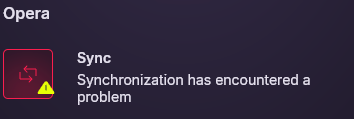
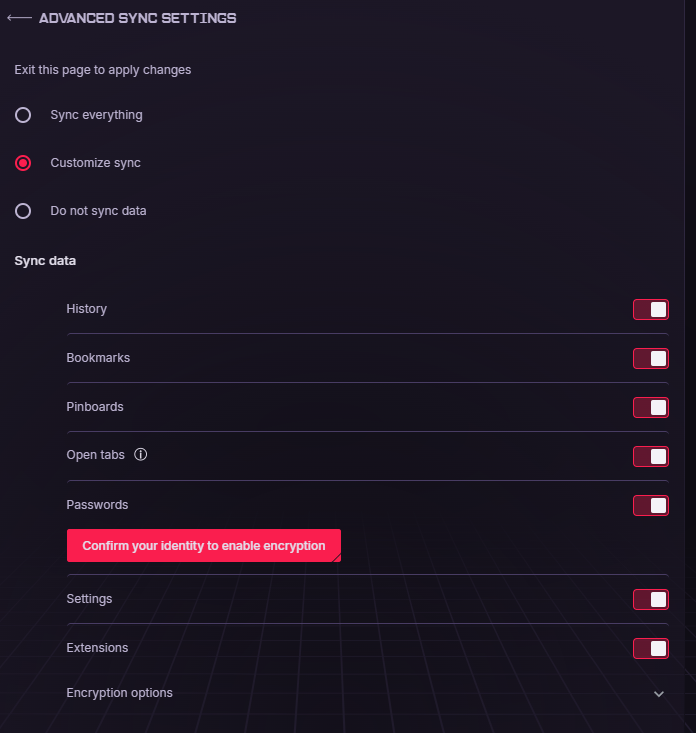
Hi I'm using windows 10 and currently running version 134.0.5954.67. I've run into a problem where none of the synchronization features are working. It'll tell me to confirm my identity and login to enable encryption but once I do it takes me back to the previous screen. I have attached some screenshots of what I mean below. If anyone could help me with this problem it would be greatly appreciated.
-
deespasitoo last edited by
Hello, don't worry, your data is 99% safe on Opera's servers. That red "Confirm your identity to enable encryption" button is a classic authorization loop that often happens after a clean Windows install when you log in via Google.
Try these 3 quick steps to fix it:- Reset your session: Log out completely from your Opera account in the top-right corner. Close the browser, open it again, and log back in traditionally (type your email and Opera password manually instead of clicking the automatic Google login button). This usually forces the server to refresh the token.
2.Clear cookies and cache: Press Ctrl + Shift + Delete, set the time range to "All time", check only cookies and cached images/files, and clear them. Leftover temp files can sometimes block Opera's verification scripts.
- Check your Passphrase: Keep in mind that if you ever set up a custom synchronization password (passphrase) in the past, you need to enter that specific password in the identity verification prompt, not your current account password.
For peace of mind, you can go to opera.com via a regular browser tab and log in there. If you see the correct number of passwords listed on that page, it means everything is safely stored in the cloud, and it's just a local app glitch.
Let me know if this helped, have a nice day!